

Online Gender Reveal Poll: Setup Guide 2026
You can set up an online gender reveal poll in one page, one link, and one timed reveal. In plain terms: pick the event time, choose between Trustee Mode vs. traditional gender reveals to decide if parents or a trusted person controls the result, add a live vote, connect a countdown, turn on RSVPs, and save the final tally plus guest notes after the reveal.
Here’s the full idea in a few lines:
- Set the date and time first so guests in different U.S. time zones join at the right moment.
- Choose reveal control: parents enter the result, or a trusted person keeps the surprise.
- Build one event page with the poll, RSVP, countdown, and reveal button in the same place.
- Use short voting text so guests know what to tap right away.
- Test on phone and laptop before the event.
- Close voting on time so the final tally stays fixed.
- Save the vote results and guest messages right after the reveal.
A synced countdown matters because even a short stream delay can throw off the shared moment. And with mobile traffic still making up more than half of web use in most reports, a no-app setup helps more guests join without friction.
If I wanted the short version, I’d say this: keep everything on one page, keep the wording short, and keep the reveal tied to one exact time.
Plan the Event Before Setting Up the Poll
Plan the date, flow, and reveal control before you build the poll.
Choose the Date, Time, and Event Flow
When you set the event time, write out the full date and time. For example: Saturday, November 14, 2026, at 6:30 PM CT. That makes it easier for guests across U.S. time zones to plan ahead without second-guessing the schedule.
Once the time is locked in, map out a simple flow: welcome → voting window opens → countdown begins → reveal animation → post-reveal reactions. This gives you a clear event rhythm and helps you decide when voting should open, when it should close, and when the reveal should start.
You can also browse online gender reveal ideas to find a theme that fits your style. After the timeline is set, decide who will enter the result.
Pick a Self-Managed or Trustee-Managed Reveal
A self-managed reveal means the parents enter the result themselves. It's a simple setup, but the parents won't be surprised during the reveal.
A trustee-managed reveal means a trusted person gets the result privately and enters it for the reveal. That way, the parents stay surprised right along with the guests.
Use self-managed if the parents are entering the result on their own. Use trustee-managed if a trusted person will enter it privately so the reveal stays a surprise.
GenderReveal.live's trustee mode lets a trusted person enter the result privately until reveal time.
After that, use RSVP tracking to figure out the size of your live audience.
Start With Built-In RSVP Tracking
Once the reveal mode is set, RSVP tracking helps you keep attendance organized before the live moment. You can collect replies, send reminders, and check your live headcount in one place.
GenderReveal.live includes RSVP management right inside the event experience. Guests can confirm attendance from the event page, and you can track who's coming without bouncing between tools.
sbb-itb-bc05356
Set Up the Poll Step by Step
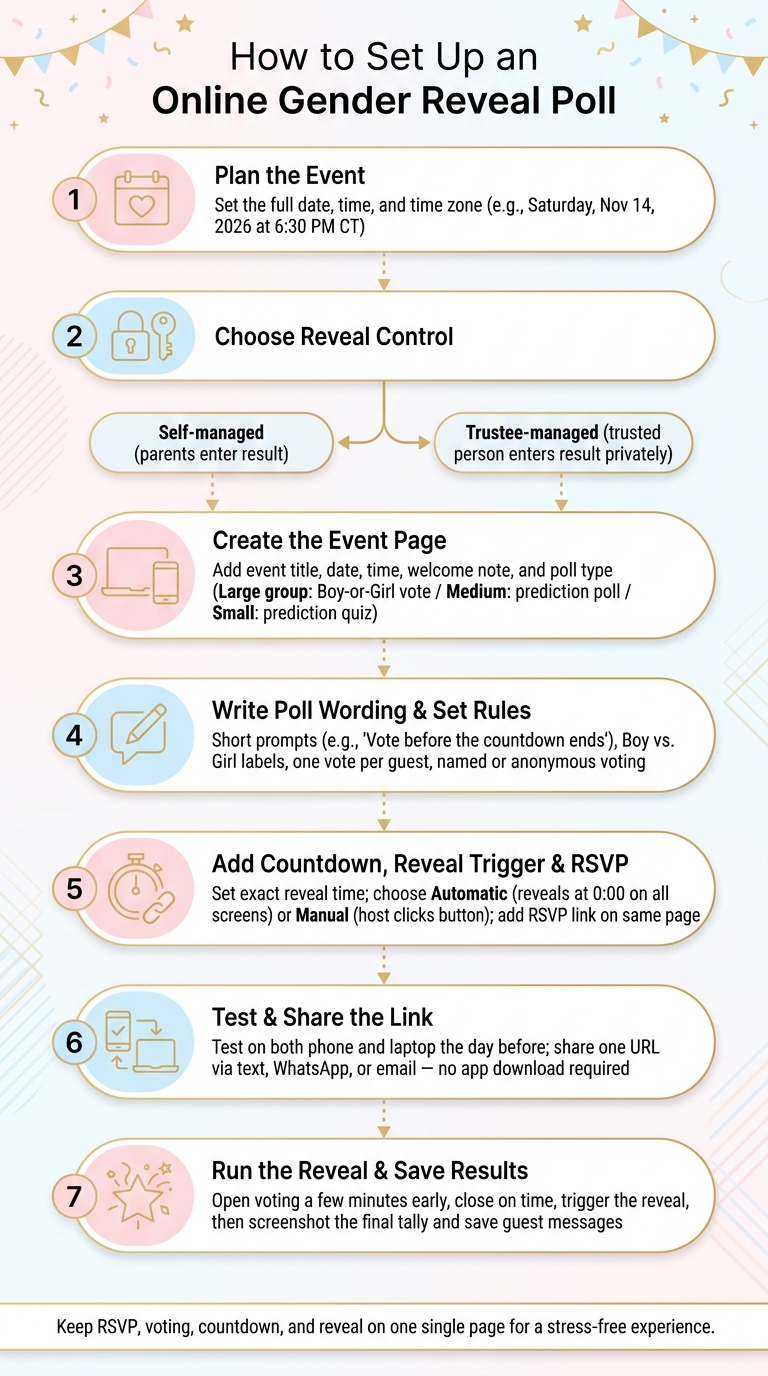
How to Set Up an Online Gender Reveal Poll: Step-by-Step Guide
With the event page ready, it’s time to build the poll and the reveal controls. Set up the page, pick the poll, and choose when the reveal happens.
Create the Event Page and Pick a Poll Type
Start with the basics: your event title, date, time, and a short welcome note for guests. A prompt like Vote before the countdown ends gives people clear direction from the start.
Then pick the poll format that matches your group size:
- Large group: simple Boy-or-Girl vote
- Medium group: prediction poll
- Small group: quick prediction quiz
After that, tighten the wording so guests can vote fast without second-guessing what each option means.
Write Clear Poll Wording and Set Voting Rules
Short, friendly prompts tend to work best. Something like Vote before the countdown ends tells guests what to do right away. For answer labels, Boy vs. Girl is simple and familiar, unless your family wants wording that feels more personal.
Stick to one vote per guest. You can use named voting if you want to see who guessed what later, or anonymous voting if you want a more relaxed feel.
Then put the countdown and reveal trigger on the same page, so the voting and reveal stay in sync.
Add the Countdown, Reveal Trigger, and RSVP Link
Set the exact reveal time during setup, then choose how the reveal starts: either automatically at 0:00 or with a manual reveal button that you click when the moment comes.
Use automatic timing if you want the reveal to begin at the exact scheduled time. When the timer hits zero, the reveal animation plays on every guest’s screen at the same moment.
If you’re using trustee mode, assign the reveal trigger to the trustee, not the parents-to-be.
Put the RSVP link on the same page as the poll so guests can confirm and vote in one visit. Keep RSVP, voting, countdown, and reveal together on a single page.
Run the Live Poll and Reveal Without Stress
Test the Poll and Make It Easy to Join
The day before the event, open the link on both a laptop and a phone. This last check helps you avoid last-minute mix-ups when the reveal begins, especially if you are using creative online gender reveal ideas that involve multiple digital elements. Make sure the countdown is running the right way, the voting buttons work, and the reveal animation loads without any hiccups.
When it's time to share the link, keep it simple: send one URL by text, WhatsApp, or email. Guests shouldn't have to download an app or make an account. One tap should take them straight to the event page. That matters even more for guests who want the fewest steps possible.
Once the page opens cleanly on both devices, you're set for voting.
Run Live Voting and Close It on Time
Open voting a few minutes before the scheduled reveal. That gives guests time to get settled, cast their vote, and watch the tally change in real time. It also builds a little suspense without making the reveal feel rushed.
Keep an eye on the results from your host screen as the countdown gets close to zero. Then close voting right on time so late votes don't shift the final result.
Once the reveal ends, capture the results before guests head out.
Choose Manual or Automatic Reveal Timing
If your group tends to run late, manual gives you more room to adjust. Use manual reveal when guests may arrive behind schedule. Use automatic reveal when you want everyone to hit that moment together.
In trustee mode, the trustee handles the timing by pressing the manual reveal or confirming the automatic reveal, so the parents stay surprised.
After the reveal, save screenshots and guest messages before you close the page.
Save the Results and Finish the Celebration
Save Poll Results, Screenshots, and Guest Messages
Right after the reveal, take a screenshot of the final vote tally. That first reaction happens fast, and a screenshot helps you keep it exactly as it happened. It also shows how guests voted, which adds a fun little layer when you look back later.
GenderReveal.live also collects heartfelt messages from guests, so you can save those notes alongside your screenshots. Once you've saved the moment, send a follow-up so guests can revisit it later.
Send Follow-Ups and Keep the Event Page as a Memory Hub
Send a thank-you to guests and leave the event link open for later viewing. Share the link so anyone who missed the live moment can still stop by, see the results, and read the messages.
Keeping the results, guest notes, and photos in one place makes the reveal much easier to revisit. Instead of hunting through text threads and camera rolls, your event page becomes a memory hub your family can come back to anytime.
Conclusion: A Simple Setup for Low-Stress Virtual Reveal Ideas
With the setup complete, you get a reveal that feels shared, simple, and easy to remember.
FAQs
How early should I open the poll?
Open your prediction poll as the reveal date gets closer, but don’t wait until the last minute. Give guests enough time to vote, leave sweet messages, and get into the spirit before the big moment.
That extra time builds anticipation early and keeps the buzz going as the event gets closer. Tools like GenderReveal.live make the whole thing simple by letting you track responses and share one easy link so guests can join without any fuss.
Should I choose manual or automatic reveal?
Choose automatic if you want to stay fully present with your guests. The reveal happens right when the countdown hits zero, so you don’t have to do a thing.
Choose manual if you want the final say. You can wait until everyone’s set, and if you’re using trustee mode, your chosen friend can start the reveal at the right moment.
What if guests join from different time zones?
That’s easy with GenderReveal.live. Guests can join from anywhere with a simple link in their mobile browser, so everyone can be part of the celebration together.
The built-in countdown keeps the reveal in sync, so guests can vote live, share messages, and watch the big moment at the same time.